
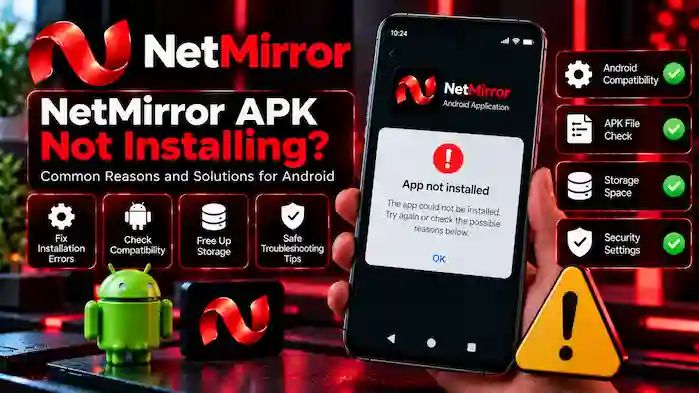
Are you facing a problem because NetMirror APK is not installing on your Android device? Installation errors can happen for several reasons, including incompatible Android versions, incomplete APK files, insufficient storage, or security warnings.
Before trying again, it is important to understand why the installation failed. You should also verify that the APK comes from an identifiable and authorized source. This guide explains common install NetMirror APK on Android problems, general troubleshooting checks, and important safety considerations.
Why Is NetMirror APK Not Installing?
There is no single reason why an APK installation may fail. The cause often depends on the Android device, file condition, application requirements, and source of the download.
Here are some common reasons:
- The APK file is incomplete or damaged.
- The application does not support your Android version.
- Your device does not meet the application’s requirements.
- There is not enough available storage.
- An existing application package creates a conflict.
- Android displays a security warning.
- The APK is not intended for your device architecture.
Understanding the error message can help you identify the issue without taking unnecessary risks.
1. Check Android Version Compatibility
One common reason for installation failure is an incompatible Android version.
Some applications require a particular Android release or newer system features. If your device uses an older operating system, the APK may not install or work correctly.
What to check:
- Open your device’s Settings.
- Find the About Phone or About Device section.
- Review the Android version.
- Compare it with the application’s documented minimum requirements.
Do not assume that every NetMirror APK release supports all Android devices. Check the requirements published by the identifiable application developer.
2. Check Whether the APK File Is Complete
An incomplete or damaged APK file may cause an installation error or parse problem.
This can happen when a download is interrupted or when a website provides an incorrect file.
Consider these checks:
- Review the file information provided by the source.
- Confirm that the download completed successfully.
- Compare the file details with the publisher’s release information.
- Avoid files with unclear names or missing version details.
If the file’s origin cannot be verified, do not try installing another copy from an unrelated download website.
3. Check Available Storage Space
Android devices need sufficient free storage to install and run applications. Limited storage may prevent an installation from completing.
You can review your available space through your device’s Settings.
Check the following:
- Available internal storage
- Storage used by temporary files
- Unnecessary files that can be safely removed
- Space requirements documented by the application publisher
Do not delete important personal files just to install an application. Make sure you understand what you are removing.
4. Review Existing Application Conflicts
An installation may fail when an existing application has a conflicting package identity or signing information.
For example, two APK files may use the same package identifier but come from different signing sources. Android may reject an update or installation in this situation.
Before making changes:
- Check whether a related application is already installed.
- Review its publisher and version information.
- Avoid installing files from different or unverified sources.
- Do not remove an existing application unless you understand the consequences and have protected any important data.
If the publisher provides troubleshooting instructions, follow those rather than relying on unknown APK files.
5. Understand Android Security Warnings
Android may display a warning when an application comes from outside the Google Play Store or when the system identifies a potential security concern.
A warning should never be ignored simply because you want to complete an installation.
Before proceeding, check:
- Whether the publisher is identifiable.
- Whether the download source is authorized.
- Whether the application has a privacy policy.
- Whether the requested permissions match its stated purpose.
- Whether your device’s security software reports a problem.
If Android or your security software identifies a possible threat, stop the installation. Do not disable security protections to force an APK to install.
6. Check Device and APK Compatibility
Not every APK is designed for every Android device. Application packages may depend on specific hardware, processor architecture, or system features.
If an APK is incompatible with your device, installation may fail even when the file appears complete.
Review the application’s supported device information and minimum requirements. If the publisher does not provide enough details to confirm compatibility, avoid guessing or installing modified versions.
Common NetMirror APK Installation Errors
The following table summarizes common Android installation messages and what they may indicate.
| Error | Possible Cause | Recommended Check |
| App not installed | Package or compatibility conflict | Review device requirements |
| Parse error | Damaged or incompatible APK | Verify file information |
| Insufficient storage | Limited free space | Check device storage |
| Installation blocked | Security restriction or warning | Verify the publisher |
| Update failed | Package or signing conflict | Check the existing app |
| App not compatible | Unsupported Android version or hardware | Review compatibility details |
These are general Android troubleshooting explanations. The exact cause depends on the error message and application version.
How to Avoid NetMirror APK Installation Problems
You can reduce common installation problems by checking a few important details before using an APK.
Follow these precautions:
- Identify the original application publisher.
- Use only a verified or authorized distribution source.
- Check the Android version and device requirements.
- Review the APK’s version and file information.
- Keep your device’s security protections enabled.
- Avoid modified files and websites with misleading download buttons.
- Read the application’s privacy policy and permission details.
If you cannot verify the source, the safest decision is not to install the file.
Frequently Asked Questions
Why does NetMirror APK show an App Not Installed error?
Possible reasons include an incompatible Android version, a package conflict, a damaged file, or insufficient storage. Review the error message and application requirements.
Can an old Android version cause APK installation problems?
Yes. An APK may require Android features that are unavailable on an older operating system. Check the minimum version specified by the publisher.
Does a damaged APK cause a parse error?
It can. An incomplete or incompatible installation package may produce a parse error. Verify the file information and source before considering another download.
Should I disable Android security to install NetMirror APK?
No. Do not disable security protections or ignore warnings to force an installation. Investigate the warning and verify the application source first.
Is every NetMirror APK compatible with Android phones?
No. Compatibility depends on the particular application release, Android version, device hardware, and publisher requirements.
Final Thoughts
If NetMirror APK is not installing, first identify the error and check your device’s compatibility, available storage, and APK file information. Installation problems do not always mean that your phone is faulty.
Most importantly, verify the publisher and download source before attempting another installation. Avoid unknown or modified APK files, and never bypass Android security warnings just to complete the process.
1 thought on “NetMirror APK Not Installing – Common Reasons and Solutions”